Webpack Installation Guide
1
Initialize project
1Step 1
Run: npm init -y
2
Install required packages
1Step 1
Run: npm install --save-dev webpack webpack-cli webpack-dev-server html-webpack-plugin
3
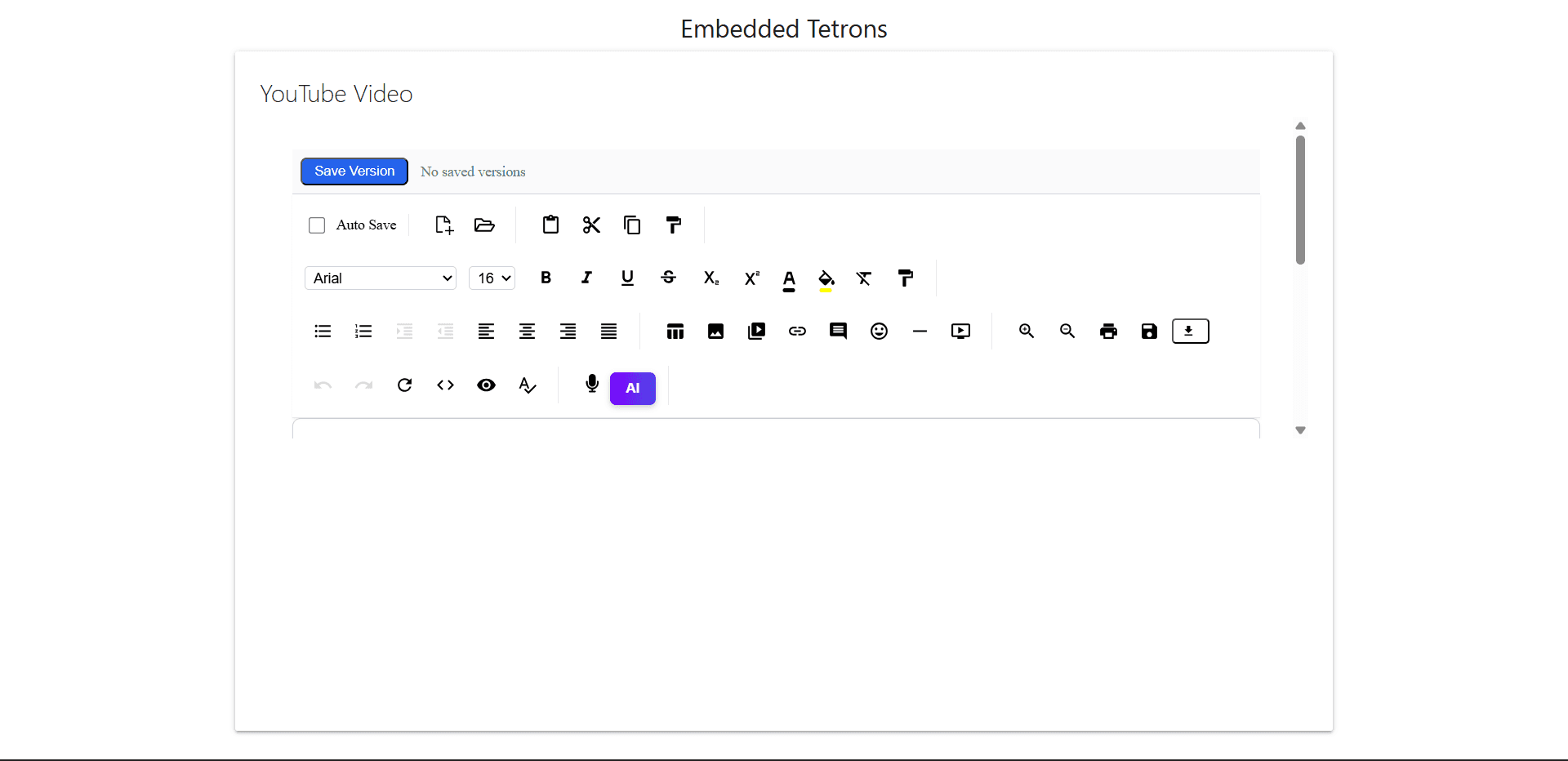
Embed Tetrons Editor
1Step 1
Create index.html in the root folder or add editor where you require it.
2Step 2
Paste the below iframe code to embed Tetrons editor:
1<body>
2    <iframe
3      id="tetrons-iframe"
4      src="https://product.tetrons.com/embed"
5      style="width:100%; height:100vh; border:none;"
6      allow="clipboard-read; clipboard-write; microphone; camera"
7    ></iframe>
8  <script src="main.js"></script>
9</body>
4
Create entry JS file
1Step 1
Create src/index.js with the following code:
1console.log("Blank page loaded.");5
Add webpack config
1Step 1
Create webpack.config.js with the following content:
1const path = require('path');
2const HtmlWebpackPlugin = require('html-webpack-plugin')
3
4module.exports = {
5    entry: './src/index.js',
6    output: {
7        path: path.resolve(__dirname, 'dist'),
8        filename: 'main.js',
9        clean: true
10    },
11    plugins: [
12        new HtmlWebpackPlugin({
13            template: './index.html',
14        })
15    ],
16    devServer: {
17        static: './dist',
18        port: 8080,
19        open: true
20    },
21    mode: 'development'
22};
6
Update package.json scripts
1Step 1
In package.json, update the scripts section as follows:
1{
2  "name": "webpack",
3  "version": "1.0.0",
4  "description": "",
5  "main": "index.js",
6  "scripts": {
7    "start": "webpack serve",
8    "build": "webpack"
9  },
10  "keywords": [],
11  "author": "",
12  "license": "ISC",
13  "type": "commonjs",
14  "devDependencies": {
15    "html-webpack-plugin": "^5.6.3",
16    "webpack": "^5.100.2",
17    "webpack-cli": "^6.0.1",
18    "webpack-dev-server": "^5.2.2"
19  }
20}
7
Start the server
1Step 1
Run: npm start
2Step 2
Or open using Live Server in VS Code
3Step 3
Or open the HTML file directly from file explorer
Output Preview